📨 How to Submit
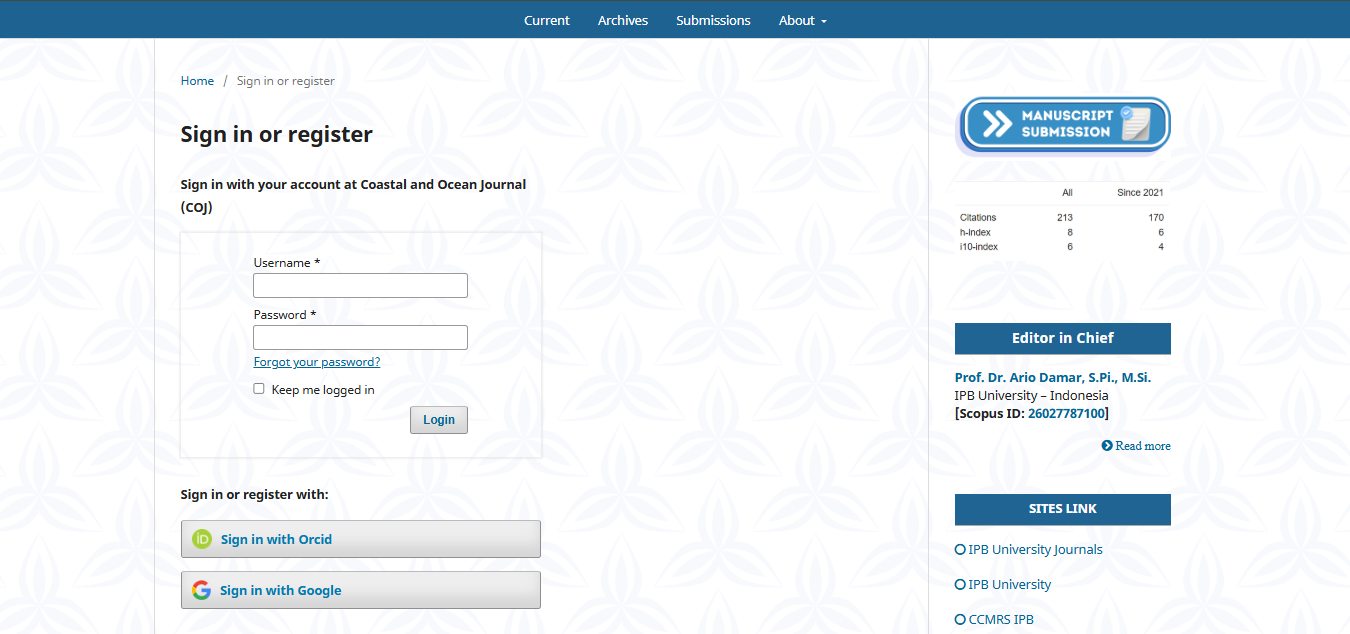
1. Register / Sign In to Journal Account
-
Open the link: Register
-
Click the Sign in with Google button using your existing Google account.
2. Completing Personal Profile Data
After successfully logging in, you need to complete your profile data and activate your specific role for the Coastal and Ocean Journal (COJ).
-
a. Fill in Your Name :
-
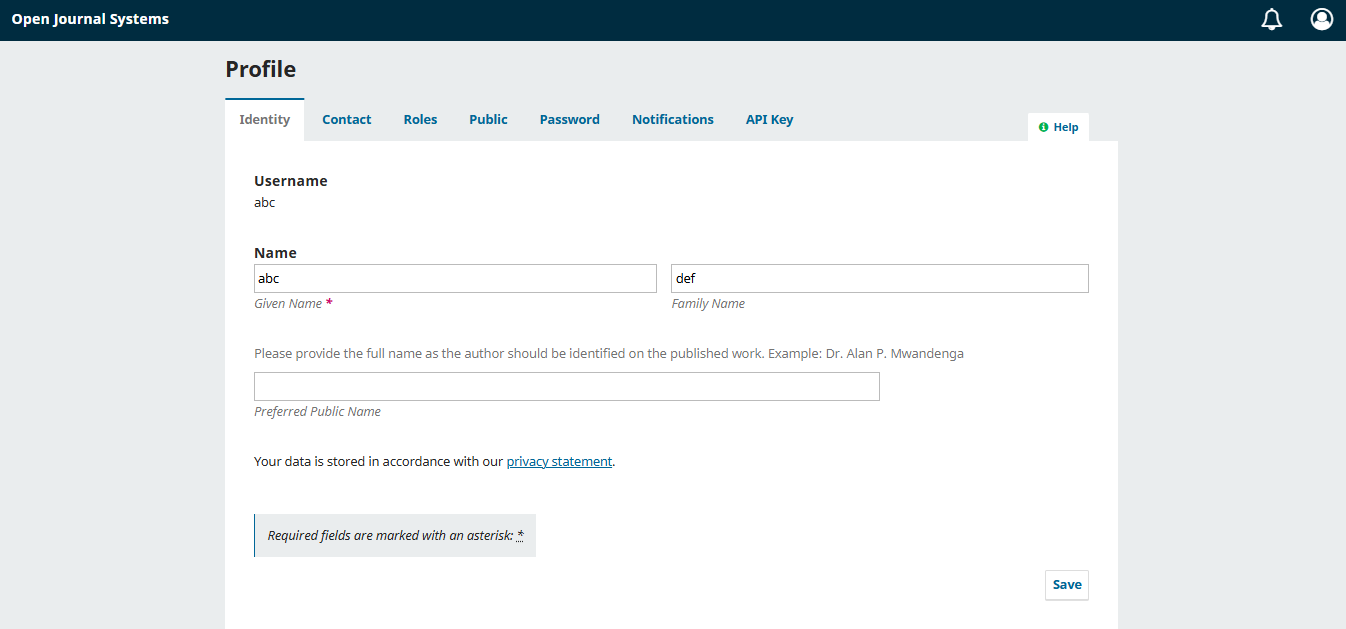
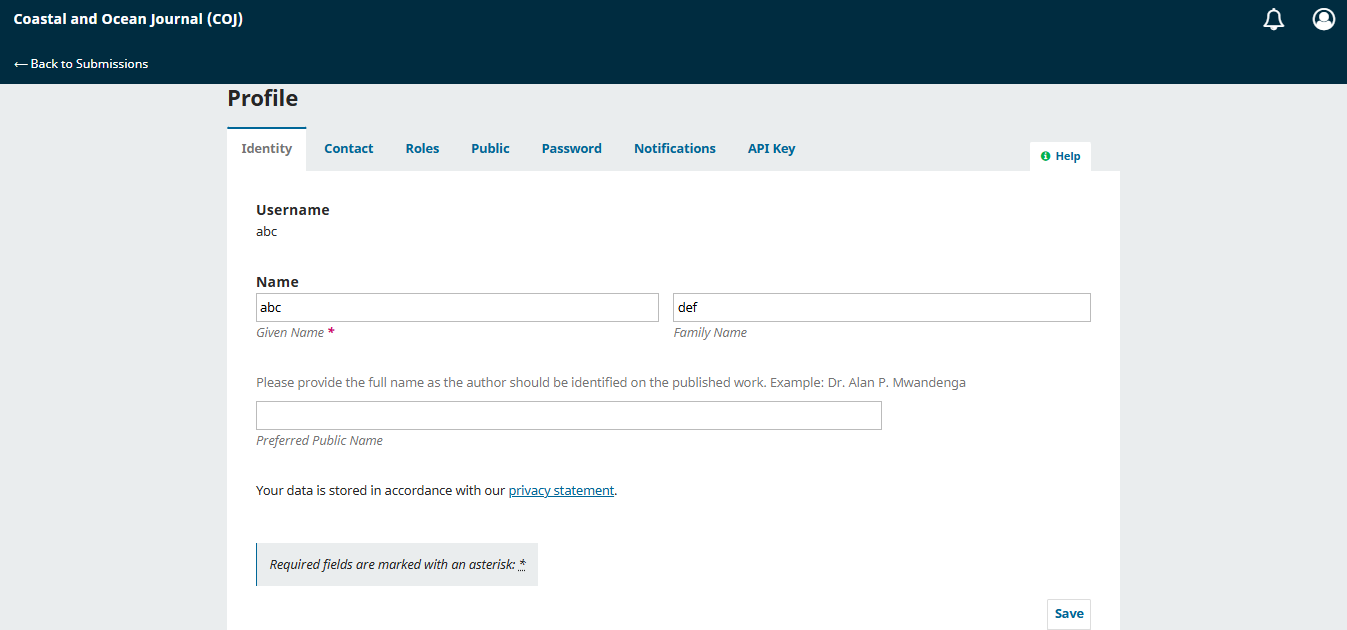
Open the Identity tab.
-
Fill in the Given Name: your name
-
Fill in the Family Name: your name
-
Click the Save button at the bottom right corner.
-
-
b. Fill in Email & Affiliation :
-
Switch to the Contact tab.
-
Make sure your active Email is filled in: the Google account you used to log in
-
In the Affiliation field, type your institution: abc
Click the Save button.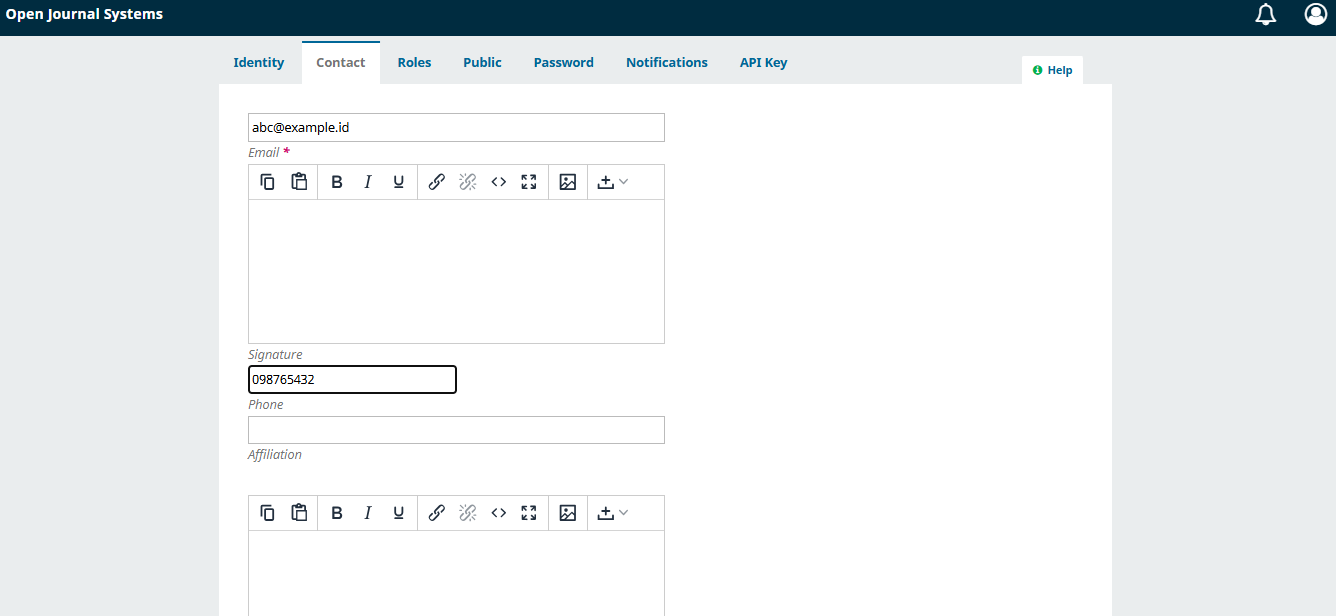
-
-
c. Activate Your Role as a COJ Author :
-
Switch to the Roles tab.
-
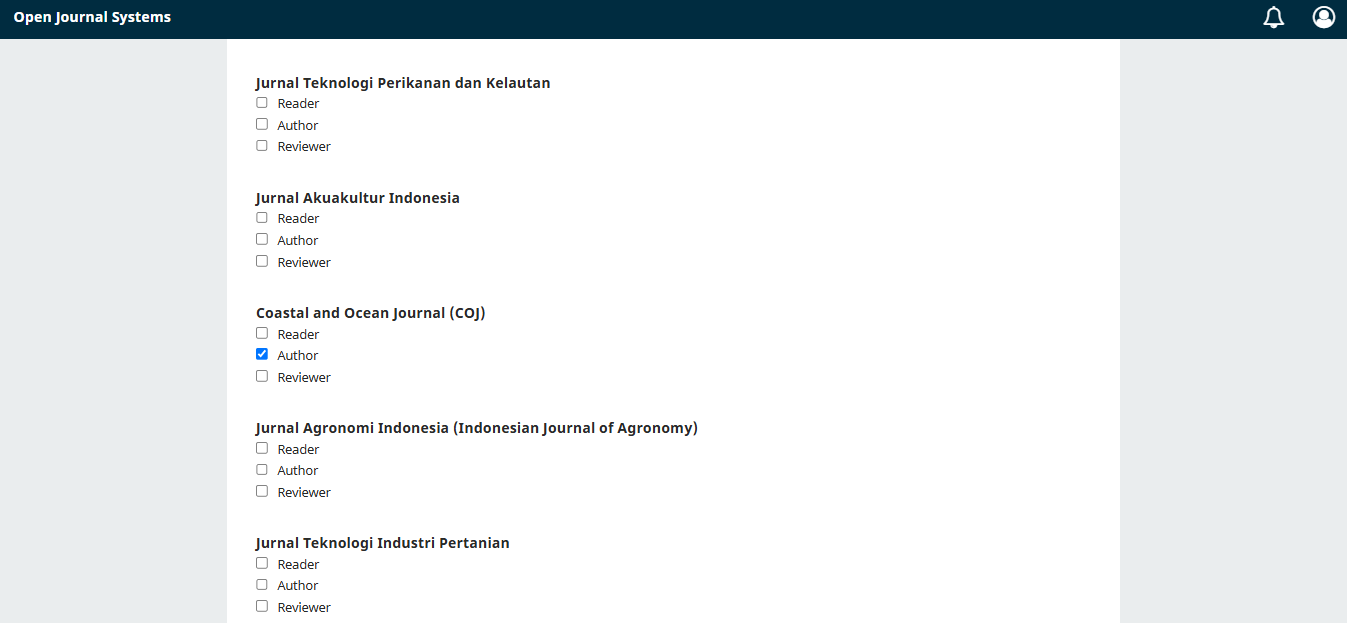
Scroll down until you find the Coastal and Ocean Journal (COJ) section.
-
Check the "Author" box on the Coastal and Ocean Journal (COJ) row to grant yourself access to submit articles.
-
Scroll all the way down to the bottom of the page, then click the Save button.
-
-
d. Fill in Public Information :
-
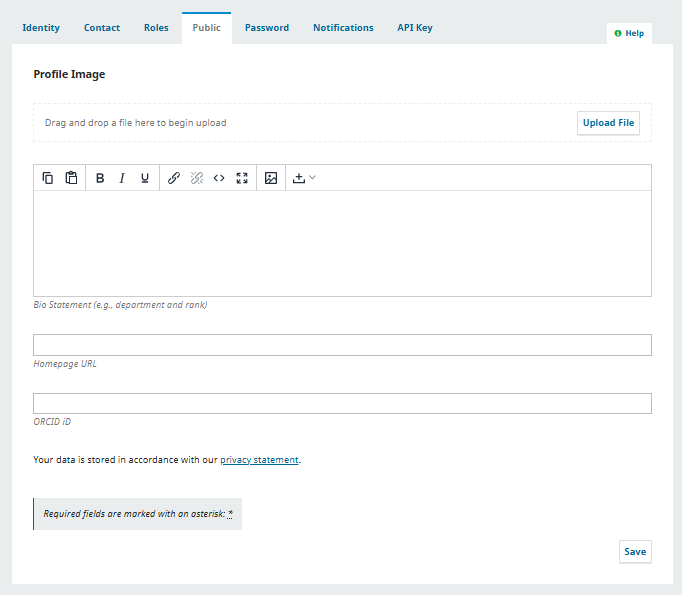
Switch to the Public tab (if you want to upload a profile picture, brief bio, homepage URL, or ORCID iD).
-
Once you are done or if you wish to skip this for now, click the Save button and Reload Page
-
3. Going to the Submissions Page
-
a. Return to the Submissions Menu :
-
Once all your profile data is saved, you can click the ← Back to Submissions button in the top left corner of the profile page to return to your dashboard queue.
-
-
b. Create a New Submission :
-
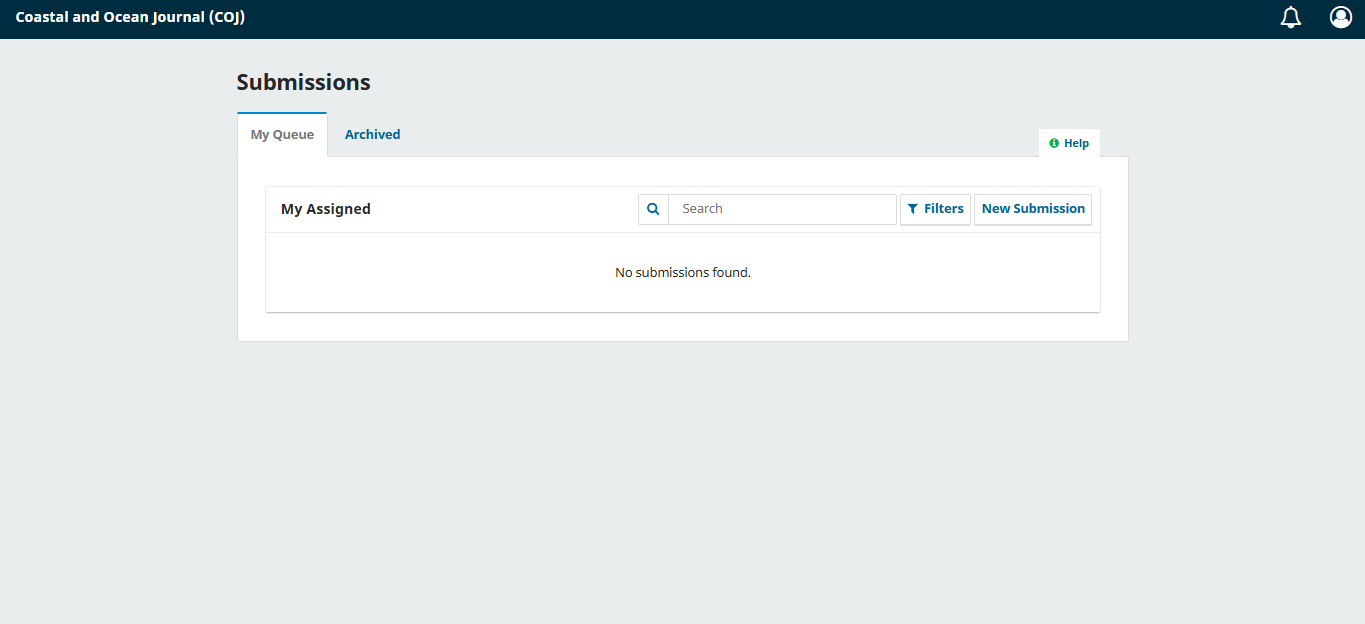
You will be redirected to the Submissions page on the My Queue tab.
-
To start sending a new manuscript, click the New Submission button located on the top right side of the table.
-